---
title: Consumer App Portal
---
# Consumer App Portal
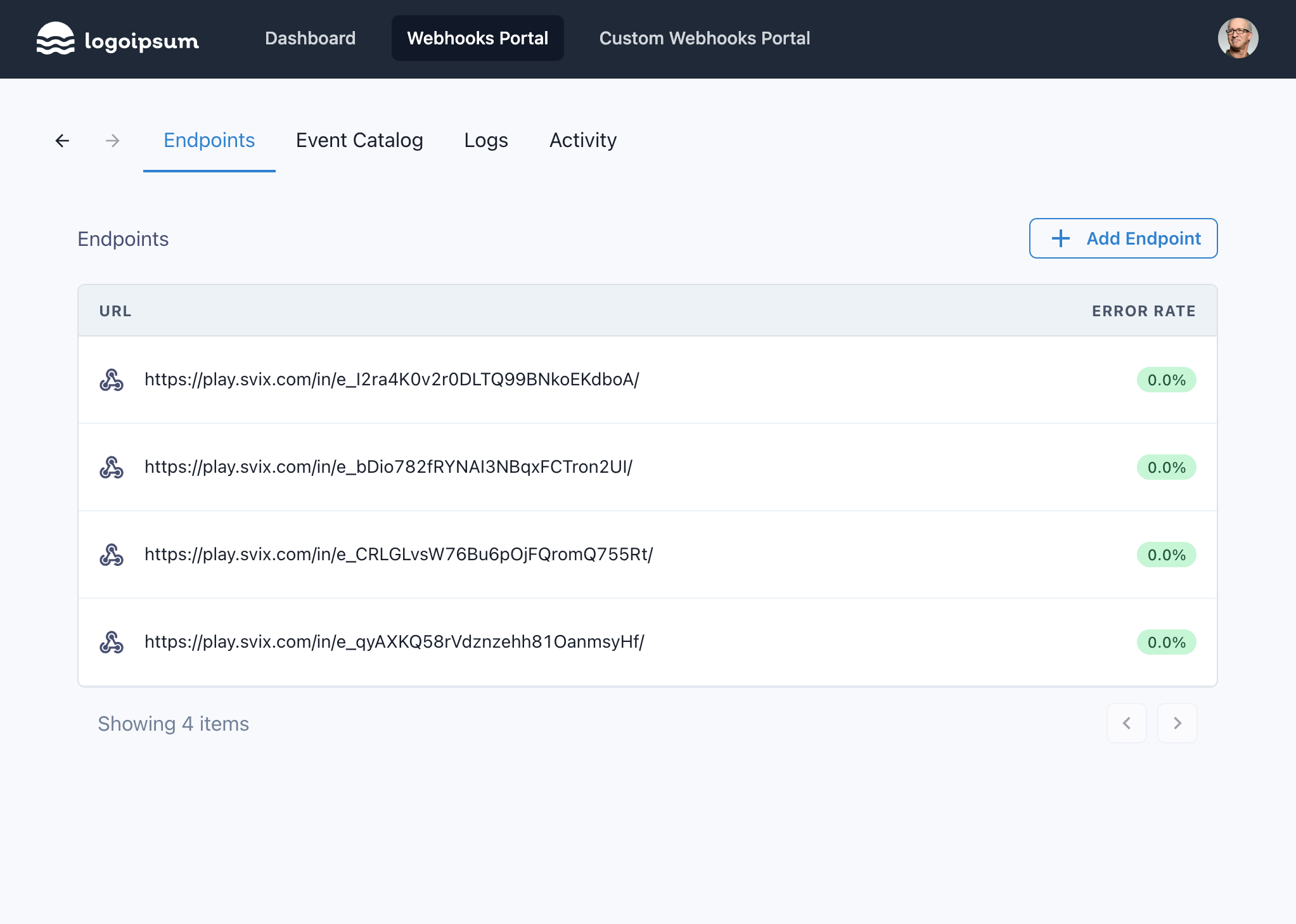
Svix comes with a consumer application portal for your users (webhook consumers) that you can use out of the box. Your users can then use it to add endpoints, debug delivery, as well as inspect and replay past webhooks. This is the easiest way to get started, but you can alternatively use the API to build your own.
If you're looking for a live instance of the app portal, you can find one here: https://example.svix.com/
Here is what it looks like standalone, or scroll down for the embedded version:

## Application portal usage guides
For more information on how to use the app portal please refer to the [receiving webhooks](./receiving/introduction.mdx) section of the docs.
## Giving your users access
App portal access is based on short-lived sessions using special magic links. You customers don't need a Svix account, and they don't even need to know that Svix exists.
To give your users access to the App Portal, just use the [app portal access endpoint](https://api.svix.com/docs#tag/Authentication/operation/v1.authentication.app-portal-access). Calling this endpoint with an `app_id` returns a single-use URL you can just redirect your users to in order to log them into the App Portal. They will stay logged in for a few days or until they log out.
The following API call to get the URL should be called from the backend as the Svix API key should not be shared with the frontend. The values returned from this API call (URL and token) are safe to pass to the frontend.
```js
const svix = new Svix("AUTH_TOKEN");
const dashboard = await svix.authentication.appPortalAccess("app_Xzx8bQeOB1D1XEYmAJaRGoj0", {});
// A URL that automatically logs user into the dashboard
console.log(dashboard.url);
```
```python
svix = Svix("AUTH_TOKEN")
dashboard = svix.authentication.app_portal_access("app_Xzx8bQeOB1D1XEYmAJaRGoj0", AppPortalAccessIn())
# A URL that automatically logs user into the dashboard
print(dashboard.url)
```
```rust
let svix = Svix::new("AUTH_TOKEN".to_string(), None);
let dashboard = svix
.authentication()
.app_portal_access(
"app_Xzx8bQeOB1D1XEYmAJaRGoj0".to_string(),
AppPortalAccessIn::default(),
None,
)
.await?;
// A URL that automatically logs user into the dashboard
println!("{}", dashboard.url);
```
```go
svixClient := svix.New("AUTH_TOKEN", nil)
dashboard, _ := svixClient.Authentication.AppPortalAccess(ctx, "app_Xzx8bQeOB1D1XEYmAJaRGoj0", &svix.AppPortalAccessIn{})
// A URL that automatically logs user into the dashboard
fmt.Println(dashboard.Url)
```
```java
Svix svix = new Svix("AUTH_TOKEN");
AppPortalAccessOut dashboard = svix.getAuthentication().appPortalAccess("app_Xzx8bQeOB1D1XEYmAJaRGoj0", new AppPortalAccessIn());
// A URL that automatically logs user into the dashboard
System.out.println(dashboard.getUrl());
```
```kotlin
val svix = Svix("AUTH_TOKEN")
val dashboard = svix.authentication.appPortalAccess("app_Xzx8bQeOB1D1XEYmAJaRGoj0", AppPortalAccessIn())
// A URL that automatically logs user into the dashboard
println(dashboard.url)
```
```ruby
svix = Svix::Client.new("AUTH_TOKEN")
dashboard = svix.authentication.app_portal_access("app_Xzx8bQeOB1D1XEYmAJaRGoj0", Svix::AppPortalAccessIn.new({}))
# A URL that automatically logs user into the dashboard
puts dashboard.url
```
```csharp
var svix = new SvixClient("AUTH_TOKEN", new SvixOptions("https://api.us.svix.com"));
var dashboard = await svix.Authentication.AppPortalAccessAsync("app_Xzx8bQeOB1D1XEYmAJaRGoj0", new AppPortalAccessIn{});
// A URL that automatically logs user into the dashboard
Console.WriteLine(dashboard.Url)
```
```php
$svix = new Svix('AUTH_TOKEN');
$dashboard = $svix->authentication->appPortalAccess(
'app_Xzx8bQeOB1D1XEYmAJaRGoj0',
AppPortalAccessIn::create()
);
echo $dashboard->url . PHP_EOL;
```
```shell
export SVIX_AUTH_TOKEN="AUTH_TOKEN"
svix authentication app-portal app_Xzx8bQeOB1D1XEYmAJaRGoj0
```
```shell
curl -X POST "https://api.us.svix.com/api/v1/auth/app-portal-access/app_Xzx8bQeOB1D1XEYmAJaRGoj0/" \
-H "Accept: application/json" \
-H "Authorization: Bearer AUTH_TOKEN" \
-H 'Content-Type: application/json' \
-d '{}'
```
In most cases you would want to create an API endpoint on your end that your frontend can call to get the URL. For example, your code may look something like this:
```javascript
const svix = new Svix("AUTH_TOKEN");
// API path: /webhooks/app-portal
function get_app_portal(authenticated_user) {
const svix_app_id_or_uid = authenticated_user.id;
return await svix.authentication.appPortalAccess(svix_app_id_or_uid, {});
}
```
Then your frontend will do something like this:
```javascript
// React example
function AppPortal() {
const [appPortal, setAppPortal] = React.useState(null);
React.useEffect(() => {
fetch('https://api.your-backend.com/webhooks/app-portal', { method: "POST" })
.then((res) => res.json())
.then((result) => setAppPortal(result));
}, []);
const url = appPortal?.url;
if (url) {
// NOTE: in practice you'd want to use the svix-react library
return (
);
else {
return
Loading...
;
}
};
```
### Showing a specific page
If you want your users to be redirected to a specific page of the App Portal, you can add a `next` query parameter to the URL:
```
https://app.svix.com/login?next=/endpoints/abc#key=xyz
```
You should use a URL parsing library to add the query parameter (avoid editing the URL manually).
### Feature flags
When [creating an App Portal URL](https://api.svix.com/docs#tag/Authentication/operation/v1.authentication.app-portal-access), you can optionally specify a list of feature flags (using the `featureFlags: [ ... ]` field) to restrict which event types your users will see in the Event Catalog and the API.
To learn more refer to the [Event Types](./event-types.mdx#event-type-feature-flags) documentation.
### Session IDs
App Portal URLs can also be generated with a specific session ID, using the `sessionId` field. App Portal URLs created with a session ID can be selectively invalidated by the [Expire All](https://api.svix.com/docs#tag/Authentication/operation/v1.authentication.expire-all) endpoint by including the session ID in the Expire All request.
Multiple App Portal URLs can be created with the same session ID, and if [Expire All](https://api.svix.com/docs#tag/Authentication/operation/v1.authentication.expire-all) is called with a session ID, only App Portal URLs with that specific session ID will be invalidated.
## Embedding in your own dashboard
### Embedding as an iframe
The returned URL from the previous section can also be embedded in your own dashboard using an iframe.

To add this to your application, just pass the URL you received in the previous example to the `src` property of the iframe:
```html
```
We have also included some basic styling to make the iframe to look nicer, though that can be omitted or modified depending on your needs.
**Important**: the `allow` directive above is required for clipboard actions to work, though they may still fail if you've blocked them with the [Permissions Policy](https://developer.mozilla.org/en-US/docs/Web/HTTP/Headers/Permissions-Policy) header.
### Embedding in a React application
We also provide the [`svix-react`](https://www.npmjs.com/package/svix-react) package that you can use to easily embed the App Portal. To use it, simply run:
```sh
npm install svix-react
# or
yarn add svix-react
```
The npm package is lightweight and provides some basic styling and a loading indicator out of the box. To use it, simply provide the magic link from the [`app_portal_access` endpoint](https://api.svix.com/docs#tag/Authentication/operation/v1.authentication.app-portal-access).
```js
import React from "react";
import ReactDOM from "react-dom";
import { AppPortal } from "svix-react";
import "svix-react/style.css";
const SvixEmbed = () => {
const [appPortal, setAppPortal] = React.useState(null);
React.useEffect(() => {
// Prerequisite: You'll need an endpoint that returns the App Portal
// magic URL (https://api.svix.com/docs#tag/Authentication/operation/v1.authentication.app-portal-access)
fetch(`/your-backend-service/svix/app-portal`, { method: "POST" })
.then((res) => res.json())
.then((result) => setAppPortal(result));
}, []);
return ;
};
const App = () => ;
ReactDOM.render(, document.body);
```
You can optionally use the `fullSize` prop (``) so that App Portal will automatically grow to fit its contents.
### Example integration
The [`svix-example`](https://github.com/svix/svix-example) repo contains an example implementation of the App Portal in a React application, using NextJS. In the webhooks Dashboard [page](https://github.com/svix/svix-example/blob/main/src/pages/dashboard/webhooks.tsx), you can see how to get the App Portal login URL and use it to render the App Portal in an iframe.
### Design Considerations
When embedding the App Portal into your application, keep in mind that the App Portal is an information dense master-detail view. We recommend keeping the view at 100% width to avoid abbreviating important information for your users. If you are hoping to avoid having an embedded scrollbar, we recommend putting the view inside a full screen modal from your dashboard, or using the `fullSize` prop so that the App Portal sizes itself based on its content.
## White labeling
Keep the same look and feel of your application by white labeling the App Portal. From the [Svix dashboard](https://dashboard.svix.com/settings), you can configure the color palette, font and the logo that your users will see.
To customize these settings, please head to your [Organization Settings](https://dashboard.svix.com/settings) on the Svix Dashboard.
### Custom settings per application
In some scenarios, you may want to customize the application portal per application, rather than for your whole organization. For example, if you change the color of your own dashboard for each of your users.
This is possible by changing the query parameters of the URL to the settings of your choosing.
Please use proper URL parsing rather than string manipulation as the structure of the URL (e.g. the fragment part) may change. Another reason to use proper URL parsing is that you want to make sure to URL-encode the parameters.
The supported parameters are:
- `primaryColorLight` and `primaryColorDark` - the primary color of the UI in light and dark mode, respectively. Format: `RRGGBB`, e.g. `28bb93`.
- `icon` - a URL to an image file. E.g. `https://www.example.com/logo.png` (remember to URL-encode it!).
- `fontFamily` - one of the fonts listed in the dashboard (see previous section). E.g. `Roboto`.
- `darkMode (false|true|auto)` - when set to `true`, dark mode will be turned on by default when the app portal is opened. `auto` will use the user's system preferred color mode. Defaults to `false`.
- `hideNavigation` - when set to `true`, the navigation tabs will be hidden. This can be useful to embed only specific sections of the app portal, in combination with the `next` parameter (see [Showing a specific page](#showing-a-specific-page)).
- `noGutters` - when set to `true`, the app portal will not have any left or right padding within the iframe. This can be useful to align the app portal content with other elements in your site.
So for example:
```
http://app.svix.com/login?primaryColorLight=22cc91&primaryColorDark=28bb93&darkMode=true&fontFamily=Roboto#key=eyJhcHBJZCI6ICJhcHBfMXRSdFlMN3pwWWR2NHFuWTRRZFI1azE4eXQ0IiwgInRva2VuIjogImFwcHNrX2UxOUN0Rm5hbTFoOU1Gamh5azRSMTUzNUNSd05VSWI0In0=
```
## App Portal capabilities
App portal capabilities let you disable certain functionality when giving your customers access to the app portal.
You can control the exact list of capabilities by using the `capabilities` property when calling [the app portal access API endpoint](https://api.svix.com/docs#tag/Authentication/operation/v1.authentication.app-portal-access).
To give your customer read-only access to the app portal, you can use the `ViewBase` capabilities. For the full list of `capabilities`, please refer to [the app portal access API docs](https://api.svix.com/docs#tag/Authentication/operation/v1.authentication.app-portal-access).
## Implementing your own Consumer App Portal functionality
You can implement Consumer App Portal functionality into your own dashboard using ergonomic React Hooks provided by the [`svix-react`] library or using the [Svix JavaScript library](https://api.svix.com/docs).
This approach allows you to use your own UI structure and components and have full control over the behavior. It's also very common to mix-and-match your own app portal with the embedded consumer app portal that we provide as an iframe. For example, you can build the list, create, and edit endpoint views yourself, and then offer the full app portal in "read only" mode to give your customers access to the more advanced functionality available in the app portal.
### Authentication
Whether implementing your own dashboard using the Svix React library or the JavaScript library, you can use the Svix frontend-friendly tokens. These are tokens that can be safely passed to the frontend as they expire automatically and are scoped to the respective application. These are the same kinds of tokens used by the iframe.
To get a frontend-friendly token, call the [get consumer app portal access API](https://api.svix.com/docs#tag/Authentication/operation/v1.authentication.app-portal-access) from the backend and pass the returned token to the frontend.
This token will be scoped to the specific application, will expire automatically based on the set expiry, and will only have the capabilities associated with it on creation.
### Svix React example
The hooks are an abstraction over the `svix` JavaScript library and help to handle concerns like paginating over large lists of data, and reloading data.
Using the hooks requires wrapping your application or components in ``:
```jsx
import { SvixProvider } from 'svix-react'
export default function App() {
return (
{/** your app's components **/}
)
}
```
Then, you can use hooks like `useEndpoints`:
```jsx
import { useEndpoints } from 'svix-react'
export default function ListEndpoints() {
const endpoints = useEndpoints()
return (